
WYSIWYG Editing
WYSIWYG editing on the site is simple. Like Google Docs, a Word document or email, there are buttons and drop-downs that you can use to style your text. Most components on the site use a WYSIWYG editor.
Formatting Options
The WYSIWYG offers familiar formatting options like bold and italics, but our WSYWIG offers a few special formatting options listed under the Styles and Format drop-down.
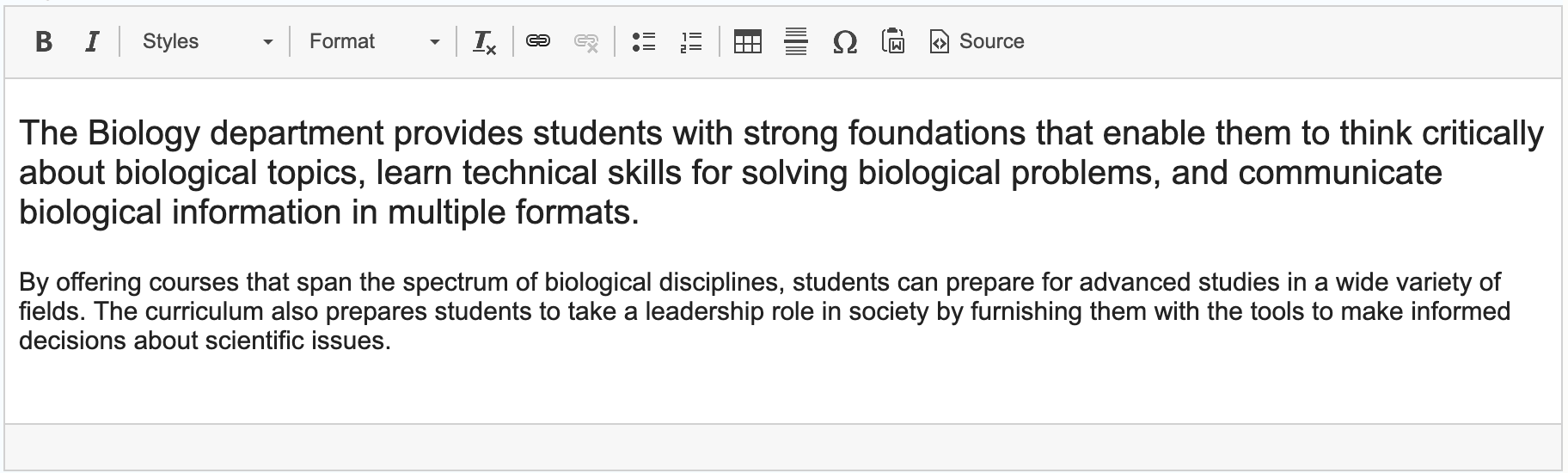
Intro Text
The first sentence of every page should have the style of Intro Text, which makes it slightly larger than the rest of the text. Intro text is used to create more dimension in a page, but should not be mistaken for a Subheading.
To add intro text:
1. Highlight the text you want to format.
2. On the Styles drop-down, select Intro Text.
Subheadings
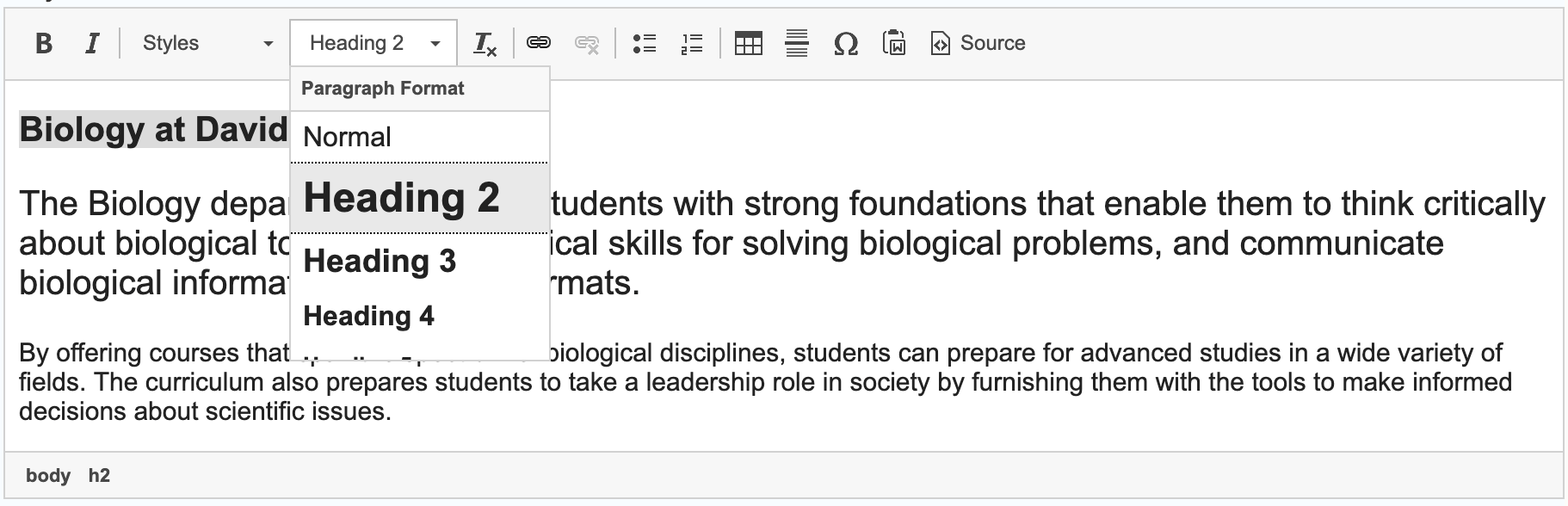
Every page title is automatically a Heading One, giving you the option to use Heading Two, Three, Four, Five and Six.
To add a heading:
1. Highlight the text you want to format.
2. On the Format drop-down, select what level Heading you’d like to use.
Subheadings are Useful for Several Purposes
- Provide a hierarchy for the most important text on the page.
- Break up the text on a webpage and make the page easier to scan.
- Aid search engines (SEO) and optimize content for AI and Generative Engine Optimization (GEO)
- Web browsers, plug-ins, and assistive technologies use headings to provide in-page navigation. They communicate the organization and hierarchy of content on a page.
Incorrect Use of Subheadings
- Don’t use subheadings for simply formatting text.
- Don’t use heading tags to highlight words on a webpage for cosmetic reasons.
- Don’t use subheadings out of sequence. H2 should follow H1, etc.